

Jump to the checklist and PDF download
You need both to answer different questions
A homeowner with a stuck garage door may call straight from Google Maps. Someone comparing replacement doors may want photos, options and details about the installation before making contact. The same business needs to serve both customers.
Google Business Profile, formerly Google My Business, is the business listing customers can encounter in Search and Maps. It can show practical details, reviews, photos and contact options. An eligible business can use a profile without having a website.
Your website gives you space to explain individual services, show your work and provide the contact or booking process you choose. You control its content and structure, although visibility in search still has to be earned. A strong profile is useful today; a useful website gives customers more to assess when the listing is not enough.
Follow the two routes a customer can take
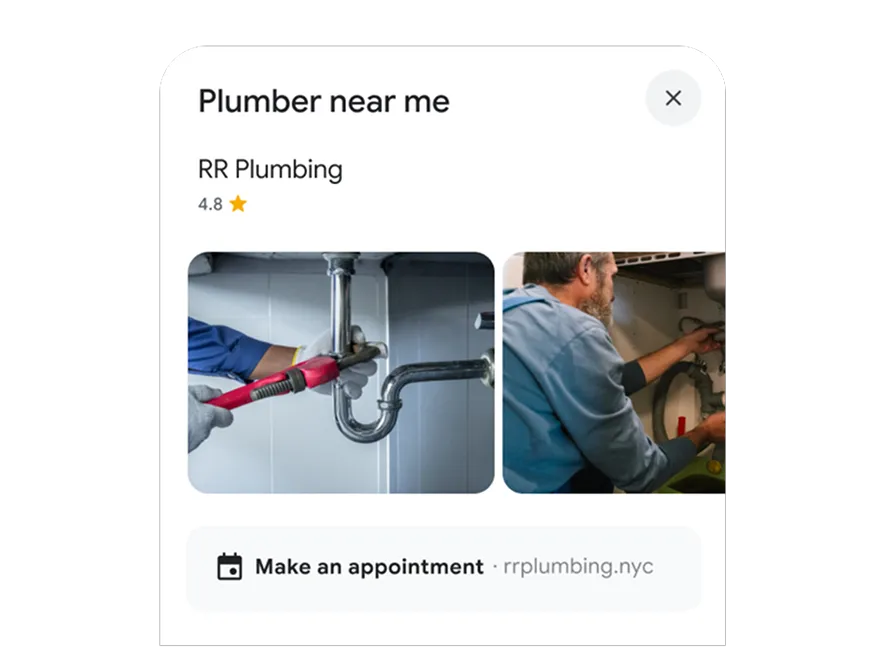
Walk both routes yourself
- Start with the profile. Search for your business as a customer would. Check the public phone number, hours, service information and website destination.
- Try the website route. Follow the link on a phone. Find a service you sell, check its coverage and reach the contact option without using your knowledge of the site.
- Check the direct route. Coordinate a test call with the office. Confirm the number and how missed or after-hours calls are handled. A tap on the number does not establish that the call was answered.
| Customer need | Business Profile | Your website |
|---|---|---|
| Find the business | Local discovery in Search and Maps | Pages that explain services and coverage |
| Check the basics | Hours, contact details and reviews | Scope, process, work examples and FAQs |
| Get in touch | Available contact options and a website link | Calls, forms and booking paths you provide |
| Keep it accurate | Review profile details and updates | Maintain pages, links and inquiry delivery |
Choose the first job from what is broken
Start by walking the customer’s path. Search for your business, inspect the profile, follow its website link, and try the contact options. Write down the first point where the information is wrong or the next step fails.
Turn the review into an order of work

Make a short action list
- Record the obstacle. Write down the wrong detail, broken route or unanswered question. Include the exact profile field or page so someone else can find it.
- Assign the fix. Give each item one owner and a checkable outcome: for example, “The profile link opens the correct location page on mobile.”
- Verify it as a customer. Revisit the public profile or page after the update appears. Test the route again rather than marking the work done when someone presses Save.
A fictional garage-door business has an accurate profile but a website that lists only “repairs.” Customers looking for replacement doors cannot see that installations are offered. Its next useful project is an installation page with real examples and an estimate process. Another business with a good website but an old phone number on its profile should fix the number first.
- Missing or unverified profile: establish ownership and complete verification if the business is eligible.
- Wrong hours, number or link: correct those before trying to attract more visitors.
- No useful website: start with services, coverage, credible business details and a working contact route.
- Visits but few suitable inquiries: check the service explanation, contact path and source of traffic.
- Inquiries but few bookings: examine fit, availability and follow-up with the office.
Get the Business Profile details right
Use the real business name, the most appropriate category, accurate hours and a number controlled by the business. Do not add service keywords to the name just to chase rankings. Make sure the website link represents that business location.
If you travel to customers and do not receive them at your address, use the service-area setup and hide the address. A residential address should not become a storefront listing. Do not create extra profiles for every town served or use a rented mailing address as a pretend office. Separate locations must meet Google’s eligibility rules.
Keep access under the business’s control, with named access for the people who manage it. That makes future staffing or agency changes easier than relying on one person’s login.
How to update your profile and services
Open Google Search on desktop and follow these steps
- Find the profile you manage. Sign in to the Google Account that manages the business, then search for its name and city. Select the correct business if you manage more than one. If management controls are missing, check the signed-in account and your access before creating another listing.
- Check the name and category. Choose Edit profile. Under Business category, select Edit to check the primary category. Choose the most specific accurate category offered by Google, and save only if a correction is needed. Keep the business name consistent with its real-world name.
- Check the phone and website. In Edit profile, open Contact. Confirm the phone number and website address, correct either field if needed, and Save. Open the public website link afterward to make sure it reaches the intended page.
- Set accurate hours. In Edit profile, choose Hours, then edit the opening hours. Set the days and times customers can actually reach or visit the business, then Save. Use special hours for holidays rather than changing the regular weekly schedule.
- Check where you serve customers. In Edit profile → Location, edit Service area and select the cities or postal areas you actually cover, then Save. If customers do not visit your address, remove it from public display. Listing an area does not guarantee rankings there.
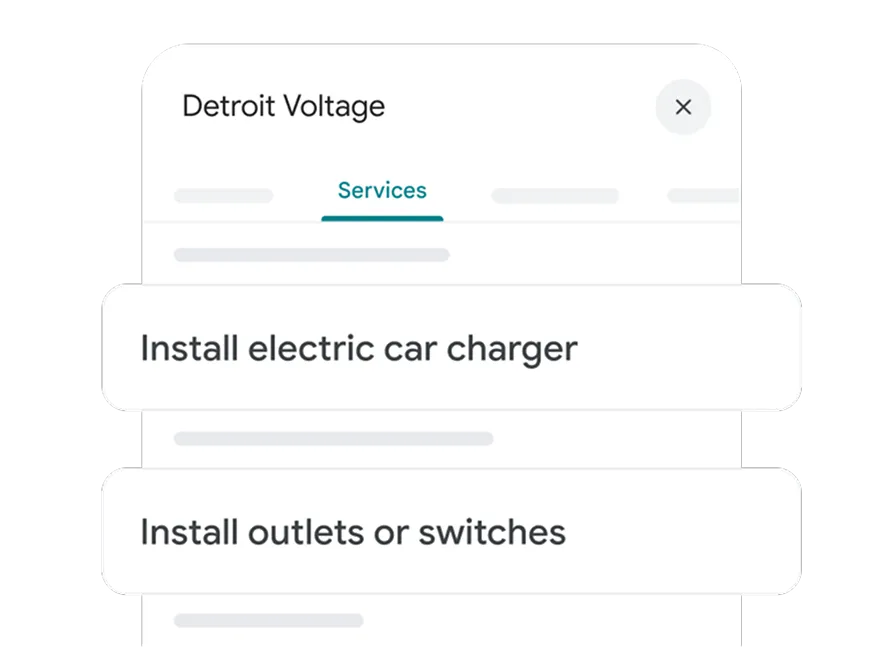
- Add the services you sell. Return to the profile’s management controls and choose Edit services. Use Add more services to select relevant suggestions, or Add custom service where available. Add useful descriptions and accurate prices if appropriate, then Save. Services options depend on your business category.
- Review the public listing. Google reviews edits, so updates may not appear immediately. Check the edit status, then revisit the public profile after approval. Some changes can require verification again.
Follow along with Google: Profile-editing video · Edit business details · Edit services
Understand what local rankings depend on
Google describes local ranking in terms of relevance, distance and prominence. Complete information helps Google understand the business. Reviews and links can contribute to prominence. The searcher’s location still matters; a service-area entry does not guarantee visibility throughout that area.
There is no setting that buys a better organic local ranking. Be skeptical of promises to rank first everywhere. A useful review checks specific services and locations over time, then compares visibility with actual inquiries.
Ask customers for honest reviews after real work. Do not offer discounts or gifts in exchange, and do not funnel only happy customers to Google while keeping unhappy customers away. Reply helpfully without exposing private job or customer details.
Keep photos and hours current because customers use them to make decisions. There is no need to turn routine updates into a promise that a posting schedule will produce a particular ranking.
Make the website worth visiting
Give each important service enough explanation to help a customer choose. A garage-door opener page can explain repair versus replacement, the types of equipment you work on, the assessment process and what happens when someone calls. Support the page with relevant work photos or examples you can verify.
Describe the places you actually serve. If you create a page for a particular town, give it information specific to your work there. Changing the city name in otherwise identical copy gives a customer little reason to read another page.
Keep the business identity, service descriptions and contact details consistent with the profile. For a single-location business, a clear homepage may be the right profile destination. A multi-location business may need a useful page for that location. Choose the page that accurately represents the listed business.
Then test the handoff on a phone. Can someone who found you on Maps see the service they need and reach your team? A polished profile should lead to an equally clear next step.
Measure discovery, inquiries and jobs separately
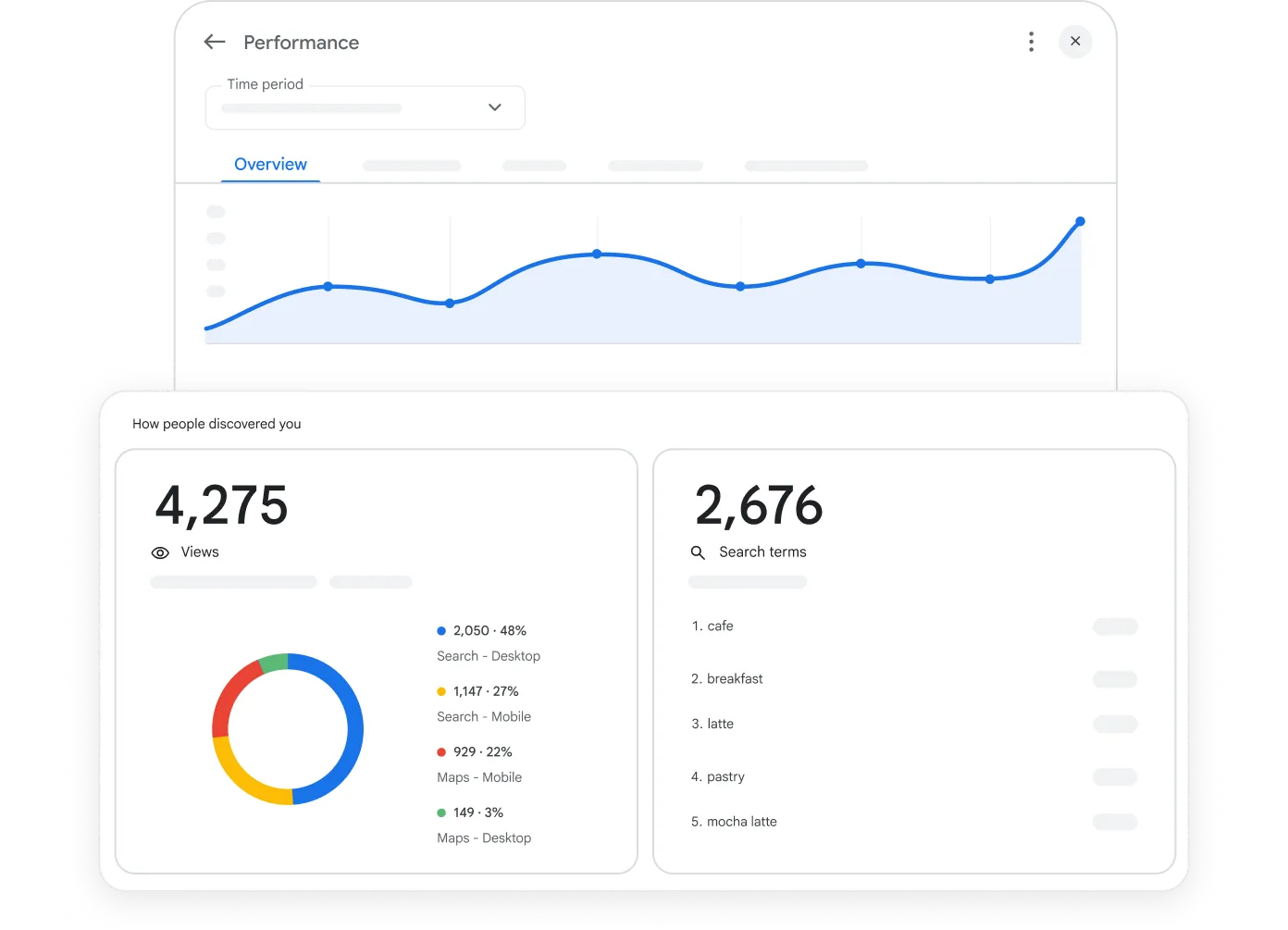
Business Profile performance reports describe activity on the profile and can include both organic results and Google Ads. Its Calls metric counts clicks on the call button, not answered conversations or booked work. Website clicks count clicks to the website; they are not automatically new leads.
How to check calls and website clicks
Review one consistent period
- Open Performance. While signed in to the account that manages the verified business, find its profile in Google Search and select Performance.
- Choose the date range. Use the time-period control at the top and select Apply. Start with a complete month so the dates are easy to match to your inquiry records.
- Read Calls and Website clicks. Select these measurements where available and record each total separately. Calls counts taps on the call button; Website clicks counts clicks to the site. Neither tells you how many jobs were booked.
- Compare a useful period. Record the same measurements for another complete month. Use the same month last year when seasonality matters and that history is available. Note differences in days, opening hours or advertising before judging the change.
- Check the actual inquiries. Review call logs, form submissions and booked work for the period. Keep repeat contacts from one person together. Use known source information and leave uncertain attribution marked unknown.
Follow along with Google: Performance steps and metric definitions
Search Console shows how the website performs in Google Search. Website analytics can help explain visits and contact actions when correctly configured. Your call and job records tell you whether a suitable customer reached the team and booked. Keep those reports connected, but do not treat their totals as interchangeable.
One homeowner might see the profile, visit the site and then call. Adding a profile website click, a website visit and a phone-button click would count several actions from that journey. It would not establish three customers.
Keep a simple lead record with the source when known, service requested, area, qualified or unsuitable status, and booking outcome. Tagged profile links can help identify visits in analytics, but they do not capture every phone call or cross-device journey. Leave room for unknown sources.
Pick one useful improvement this week
Correct wrong information first. Next, repair broken contact routes. Then work on the service or customer question that is least well explained. Give each task an owner and a way to verify it.
Once the basics work, look at patterns: which services get discovered, which pages attract relevant visits, and which inquiries become work you want. That is a better basis for deciding where to spend than choosing a permanent winner between the profile and the website.
Run the Business Profile review checklist
Review one business location at a time. Compare the profile with the facts your team has confirmed, then follow its website and contact links as a customer would. Leave unresolved items unchecked and record what needs fixing.
Download the fillable PDF to keep your review, or copy the checklist link to share this section with your team. On-page checkmarks are temporary and are not included in the shared link or PDF.
A one-page profile audit you can fill in or print, with room for fixes and a follow-up.
The PDF and shared link start with a blank checklist. On-page checkmarks are not included.
Sources
- Google: Business Profile eligibility and representation rules
- Google: How local ranking works
- Google Maps: Review and fake engagement policies
- Google: Business Profile performance definitions
- Google: Edit your Business Profile
- Google: Choose a business category
- Google: Manage business hours
- Google: Manage service areas
- Google: Manage your services