

Jump to the checklist and PDF download
1. Open the report and set a useful date range
A plumber can pay for a click from someone who wants a repair, a replacement part or a job. All three searches may contain “plumber.” Only some fit the campaign. The search terms report helps you see the difference.
Open Google Ads on a computer and follow along with one Search campaign. The steps below take you from the report to a saved exclusion and a follow-up check. You can complete the review without changing anything; saving an exclusion requires permission to edit the account. Other campaign types have different controls.
How to set up a useful search-term review

Follow along in Google Ads on desktop
- Open the right account and report. If you manage several businesses, enter the individual account first. In the left menu, choose Campaigns → Insights and reports → Search terms.
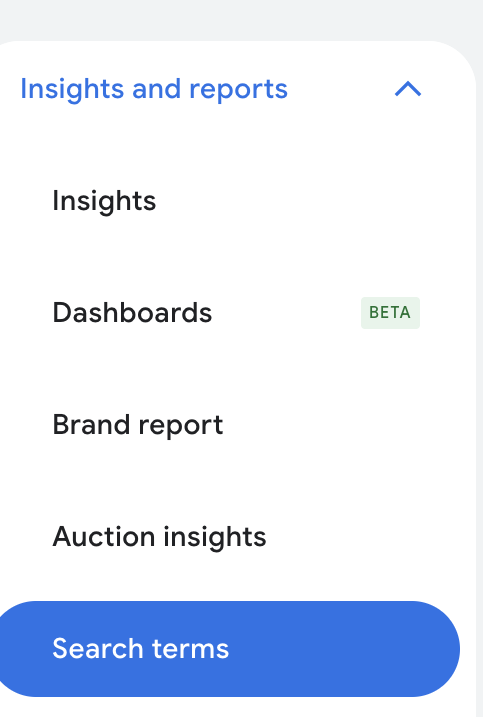
Open Search terms under Insights and reports. Screenshots throughout this guide have identifying details and account figures removed. Open larger image (new tab) - Narrow the campaign. Use the campaign selector or campaign filter to choose one Search campaign. Confirm its name before reviewing rows. For example, review residential AC repairs separately from installations.
- Set your dates. Open the date picker above the report. Start with Last 30 days, or choose a custom period with enough completed inquiries. Apply the range. Leave recent clicks time to turn into leads.

The selected date range appears above the report. Open larger image (new tab) - Choose the columns. Open Columns above the table. Include Clicks, Cost, Conversions, Conv. rate and Cost / conv. Under Attributes, select Keyword. Keep Campaign and Ad group visible where available, then Apply.

Choose Columns to change which measurements appear in the table. Open larger image (new tab) - Put the largest costs first. Click the Cost heading until the highest-spend rows are at the top. Read the entire query before deciding what it means. Download the report if you want a spreadsheet for review notes.
- Work through one row. In the sample above, “AC repair manual” has $45 in spend and no requests. A repair-only business would investigate its DIY intent. “AC installation cost” has $120 in spend and one request; an installer would check that request’s quality before excluding it.
A keyword is a targeting input you choose. A search term is the query someone entered. Add the Keyword column to see which keyword triggered the ad. The report’s Match type describes the relationship between that query and keyword; it is not necessarily the match type you selected for the keyword.
Start with the last 30 days as a working view, then adjust for your volume and time to conversion. Compare it with an earlier period of similar length. If customers often book days after clicking, the newest days will be incomplete. An emergency repair and a planned system replacement need different patience.
Some low-volume queries are withheld for privacy. The visible rows are not a complete account of every search, so do not treat their totals as the whole campaign.
2. Separate bad fit from weak performance
Start with the unfiltered report, sorted by cost. To focus on spending without recorded results, use the filter control above the table: add Cost greater than 0 and Conversions equal to 0, then apply. Treat the filtered rows as an investigation list. A zero is not a reason to exclude a relevant search on its own. Clear those filters afterward so you also review searches producing inquiries.
Ask two questions: could your business satisfy this search, and what happened after the click? Keep those questions separate. A person seeking a technician job is a poor fit for a repair campaign even before they spend much. A homeowner seeking the repair you sell may need a better page or a returned call.
Use three labels in your review notes: keep, investigate or exclude. The examples below are fictional and assume a residential HVAC business that offers both repair and installation.
| Search | Likely need | What to review |
|---|---|---|
| AC repair near me | A repair service | Check service area and lead quality; investigate the page or missed calls if results are weak |
| AC repair manual | DIY instructions | Investigate DIY intent; consider a precise exclusion if the query does not fit |
| AC installation cost | Researching an installation | Keep eligible if installations fit; explain the estimate process on the page |
| HVAC technician jobs | Employment | Exclude from the repair campaign; keep any recruitment campaign separate |
Illustrative examples, not account data or blanket exclusion advice.
- Keep: the service, area and customer need fit, with useful inquiries or enough reason to keep gathering evidence.
- Investigate: the intent fits, but the outcome is weak or unclear. Check tracking, the destination page and call handling.
- Exclude: the query clearly seeks work, products or services this campaign should not advertise.
3. Check what a “conversion” actually means
Before judging a search by its conversion count, inspect the actions behind that number. A tap on the phone number, a submitted request and a qualified repair inquiry describe different events. A campaign optimized around easy clicks can look busy while producing little work.
Google Ads uses primary and secondary conversion settings to control reporting and, with campaign goals, bidding. Check which actions the campaign actually uses. Secondary actions normally appear in All conversions; custom goals are an exception. Have the person responsible for measurement review the setup before changing it.
Compare your ad reports with call and lead records where attribution is available. Record service requested, location, whether someone responded, and whether the job was booked. You may not be able to connect every inquiry to its exact search term. Mark unknowns as unknowns rather than filling the gaps with guesses.
Here is a fictional example: $600 in ad spend produces 12 tracked requests, but only four are qualified. That is $50 per tracked request and $150 per qualified lead. If two become booked jobs, ad spend per booked job is $300. These are three useful numbers, and none is profit. Include job margin, cancellations and other acquisition costs when deciding what is affordable.
Calculate the cost of the outcome you need

Work it out for your account
- Choose one group of inquiries. Use the same campaign and acquisition period for the spend and lead records. Allow those inquiries time to reach a booking decision.
- Separate the outcomes. Count valid requests, qualified leads and booked jobs. Remove duplicate records and keep unresolved inquiries visible.
- Divide the spend. Divide ad spend by each count. If a stage has no outcomes, report that directly; its cost per outcome is not zero.
4. Add a negative keyword and verify it
A negative keyword blocks matching searches. Before adding one, write down what you want to stop and which useful searches must stay eligible. Do not paste an industry-wide exclusion list into an account without checking it against the business.
For Search campaigns, a negative exact match such as [ac repair manual] blocks that query without extra words. A negative phrase such as “repair manual” blocks searches containing those words in that order. Negative broad match repair manual blocks searches containing both words in any order.
See what each negative match type blocks

Add one negative keyword from the report
- Select the unwanted search. Return to Search terms. Tick the checkbox beside one query you have decided to exclude, such as “ac repair manual.” Choose Add as negative keyword above the table.
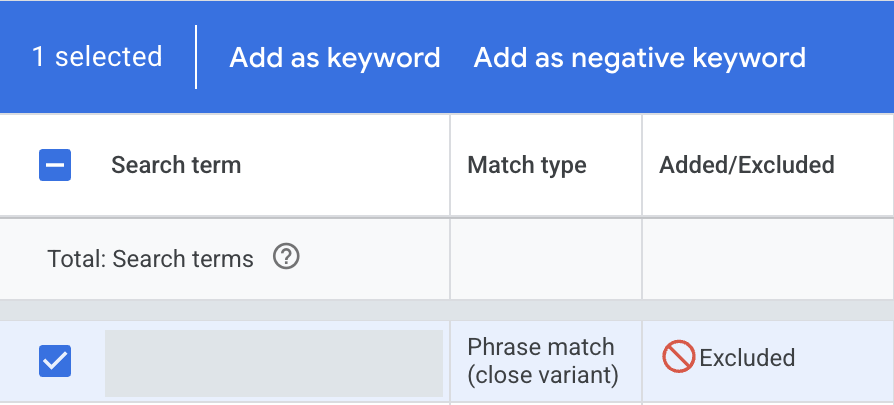
Selecting a row reveals Add as negative keyword. This screenshot was taken after exclusion; for a new exclusion, select the unwanted query you have just reviewed. Open larger image (new tab) - Choose where it applies. Select Ad group or Campaign. Check the destination shown: an ad-group negative affects that group; a campaign negative affects every ad group in that campaign. Use a shared list only when the exclusion fits every campaign using it.
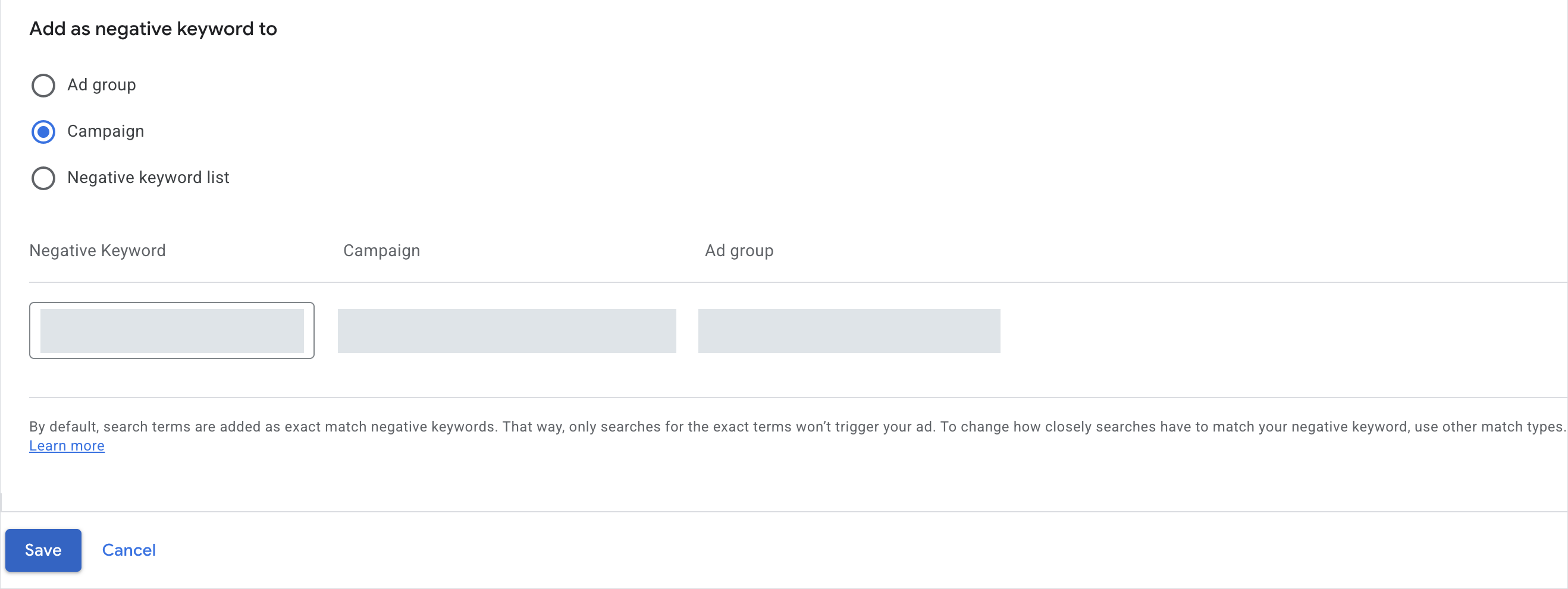
Choose where the negative applies, then check its text and match type before saving. Keyword, campaign and ad group names are hidden here. Open larger image (new tab) - Confirm the text and match type. Report-added negatives default to exact match. For this example, keep [ac repair manual] to block that specific query. Use the comparison above before broadening it to "repair manual" or repair manual.
- Save the exclusion. Recheck the query, match type and destination, then select Save. Historical clicks and costs remain in the report; saving a negative does not erase earlier activity.
- Verify the saved entry. Open Campaigns → Audiences, keywords, and content → Search keywords, then Negative search keywords. Some layouts label these Keywords and Negative keywords. Find the entry and confirm its match type and campaign or ad group. If you used a list, check its campaign assignments too.
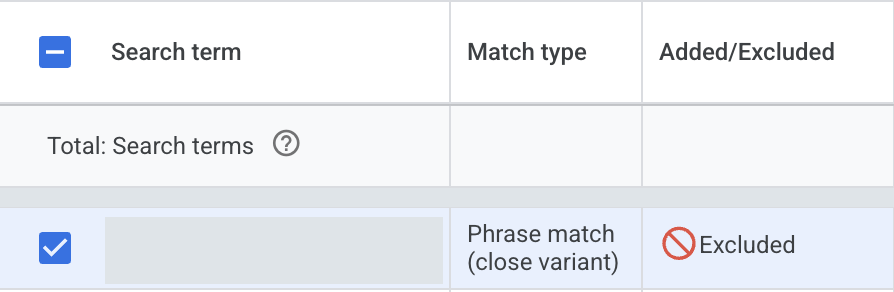
The report can show Excluded in the Added/Excluded column. Match type here describes how the original search matched your keyword; verify the negative’s match type in your negative keyword settings. Open larger image (new tab)
Negative keywords do not expand to all synonyms or singular/plural forms. Google handles casing and misspellings automatically. Review meaningful variations rather than assuming one exclusion covers them all.
Use the appropriate scope: an ad group, a campaign, or an account-level list that affects eligible inventory across campaigns. An account-wide exclusion can cut off demand another campaign needs.
Words such as “cost,” “price” and “free” need context. “AC installation cost” can come from a homeowner planning a purchase. “Free estimate” may match an offer you actually make. Excluding those words everywhere because they appeared in one poor query is an easy way to lose useful traffic.
5. If your screen looks different
Cannot find individual queries? Open Search terms under Insights and reports. Search terms insights groups demand into themes, while Report editor creates a separate reporting view. Use the Search terms table for the checkbox-and-exclusion workflow above; Report editor does not let you add negatives directly.
No rows? Check the selected account, campaign, date range and active filters. A new or low-volume campaign may have little reportable activity. Expanding the dates can help, but privacy restrictions mean some queries will still be unavailable.
No Add as negative keyword action? Select a row first and confirm you are in the Search terms table for a Search campaign. If you can view reports but cannot save changes, ask the account administrator to check your access.
Saved the wrong exclusion? In the Negative keywords table, locate the entry at the level where you saved it. Use its pencil control to correct the wording or match type, or select it and choose Remove. Check any confirmation before finishing. Editing a shared list affects the campaigns using that list.
6. Give relevant searches the right next step
If the query fits but the page does not, fix the destination. A search about installing a new system deserves an explanation of installations, the estimate process and the area served. A generic homepage may leave those questions unanswered.
If inquiries are coming from outside your coverage, inspect location targeting and the locations of actual leads. A city name in a query alone does not tell you where the searcher is. If good calls go unanswered, address staffing or scheduling before blaming the search.
Look for useful demand as well as waste. Several relevant searches about the same service may justify clearer ad copy or a better service page. They do not automatically justify another campaign or a higher budget.
7. Return to Google Ads and check the effect
Keep a short change log: query or theme, evidence, decision, exact exclusion and match type, scope, date, and follow-up date. “Excluded [ac repair manual] from the residential repair campaign; requests were for instructions” is useful. “Cleaned up keywords” is not.
A weekly review is a reasonable starting routine for an active small account. Review new campaigns or sudden spending changes sooner. Low-volume accounts may need a longer period before performance decisions are meaningful. These are working habits, not Google requirements.
At the next review, return to the same campaign’s Search terms report. Choose a date range after the change, turn on Compare in the date picker, and select an equally long earlier period. Apply it and compare cost, conversions and cost per conversion, then check qualified inquiries in your lead records. Use completed periods and allow for conversion delay, budget changes and seasonality. Lower spend alone does not establish that the change helped.
There is no universal click count or spend threshold that makes every zero-conversion search a bad one. Use a clear mismatch to decide quickly. Use reliable outcome data and the economics of the job to decide whether relevant demand deserves more time.
8. Run the search terms review checklist
Use this checklist for one Search campaign at a time. Record the date range, label queries keep, investigate or exclude, and write down why. If a check reveals a gap, leave it unchecked and give the next task an owner.
Download the fillable PDF to keep your review, or copy the checklist link to share this section with your team. On-page checkmarks are temporary and are not included in the shared link or PDF.
A one-page review you can fill in or print, with room for a decision and follow-up.
The PDF and shared link start with a blank checklist. On-page checkmarks are not included.
Sources
- Google Ads: Search terms report and instructions
- Google Ads: Negative keyword match types
- Google Ads: Add negatives from the search terms report
- Google Ads: Find, edit and remove negative keywords
- Google Ads: Negative keywords and campaign lists
- Google Ads: Primary and secondary conversion actions
- Google Ads: Conversion delay and reporting